Frame Rate Test - Free Online FPS & Refresh Rate Checker
Real-time FPS test
Display FPS & Refresh Rate
When the test starts, this strip moves with every sampled frame so users can see the browser is actively measuring.
Higher values draw more moving objects and can reduce FPS.
Frame Rate Test Comparison
Compare different FPS levels side by side
This FPS test visualization shows how each frame rate looks in motion. Lower FPS produces visible stutter while higher FPS delivers smoother animation.
How to run the FPS test
Three quick steps
No install. The frame rate test runs locally inside your browser.
Start the FPS test
Click Start to measure frame rate in real time.
Adjust stress level
Increase the load to see how your FPS changes.
Read results
Use current, average, min, and max FPS to judge smoothness.
Understanding frame rates
Common FPS levels and what they feel like
Frame rate is the number of frames rendered per second. Use our frame rate test to measure your FPS in real-time. Higher FPS reduces motion judder and improves perceived smoothness. This FPS test helps you understand your device's true performance.
Why frame rate matters
Higher FPS delivers smoother motion and faster response times. Whether you're gaming, streaming, or working, understanding your device's frame rate helps optimize your experience.
Cinematic look for films and traditional storytelling. Used in most Hollywood movies, creating a classic, immersive viewing experience with natural motion blur.
Standard for broadcast TV, streaming platforms, and web video content. Balances smooth playback with reasonable file sizes for YouTube, Netflix, and live streams.
Smooth motion ideal for gaming, sports broadcasts, and action content. Dramatically reduces motion blur and input lag compared to 30 FPS.
Very smooth motion commonly used in VR headsets and fast-paced games. Reduces motion sickness in virtual reality by minimizing latency between head movement and display update.
High-refresh gaming with noticeably reduced motion blur and input latency. Popular among competitive gamers and owners of 120Hz+ monitors or phones.
Ultra-smooth motion for competitive esports and professional gaming. Provides the lowest input lag and clearest motion clarity during fast tracking and flick shots.
FPS vs Hz
Frame rate and refresh rate are related, not identical
FPS is how many frames your device renders each second. Refresh rate (Hz) is how often your display updates. A high-Hz monitor can only show what your device actually renders. Our frame rate test measures both values simultaneously.
People also call this an FPS tester, frame rate checker, FPS test online, or refresh rate test; this page covers those use cases in one place.
Frame Rate (FPS)
Output from your GPU/CPU. Drops here show up as stutter or uneven frame pacing.
Refresh Rate (Hz)
Display capability. Higher Hz can display more frames when FPS is high enough.

Tips for accurate FPS test results
- Close heavy tabs or background apps before running the frame rate test.
- Use fullscreen mode for more consistent FPS test readings.
- Disable battery saver or power-saving modes.
- Run the FPS test multiple times and compare averages.
Frame Rate Test Glossary
Key terms for understanding FPS test results
Master these essential concepts to better understand your frame rate test results and optimize your gaming or viewing experience. This FPS test glossary covers all the technical terms you need to know.
Optimize Your Setup
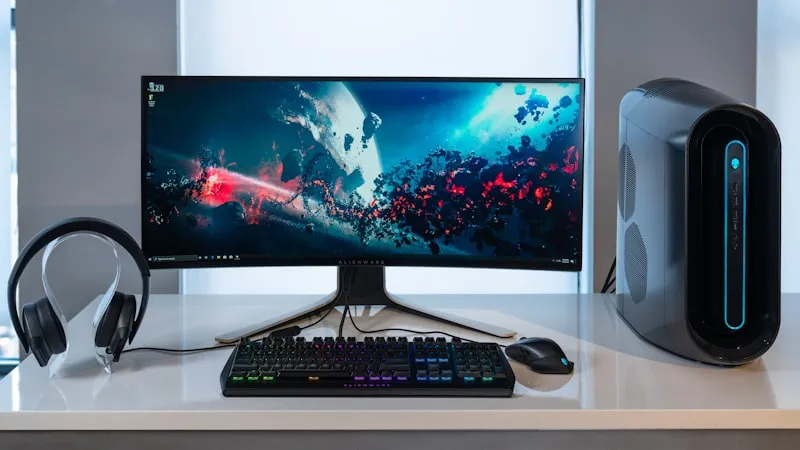
A high-end gaming PC combined with a high refresh rate monitor delivers the best FPS test results. Understanding these terms helps you identify bottlenecks and improve your overall experience.
Screen Tearing
A visual artifact that occurs when your GPU outputs frames faster than your monitor can display them. Our frame rate test helps detect inconsistent frame delivery that causes tearing. V-Sync and adaptive sync technologies like G-Sync and FreeSync help eliminate this issue.
V-Sync (Vertical Sync)
A technology that synchronizes your GPU's frame output with your monitor's refresh rate. While it eliminates screen tearing, it can increase input lag and may cause stuttering if your FPS drops below the refresh rate.
G-Sync / FreeSync
Adaptive sync technologies from NVIDIA and AMD that dynamically match your monitor's refresh rate to your GPU's frame output. They eliminate tearing without the input lag penalty of traditional V-Sync.
Frame Pacing
The consistency of time intervals between displayed frames. A good FPS test should show stable frame pacing. Even at a steady 60 FPS, poor frame pacing can cause perceived stutter.
Input Lag
The delay between your input and the action appearing on screen. Higher frame rates from your FPS test mean lower input lag, which is why competitive gamers prioritize 144Hz+ monitors.
Motion Blur Reduction
A display feature (also called ULMB, DyAc, or ELMB) that strobes the backlight to reduce perceived motion blur. Combined with high refresh rates, it dramatically improves clarity during fast camera movement in games.
FAQ
Common questions
How do I test my FPS? ⌄
Is FPS the same as refresh rate (Hz)? ⌄
What FPS should I aim for? ⌄
Why does my FPS fluctuate or drop? ⌄
Can I compare 30 vs 60 vs 120 FPS? ⌄
Does this work on mobile? ⌄
How can I get more stable readings? ⌄
Ready to run your FPS test?
Start the free frame rate test now and compare your device's performance.
Run FPS Test